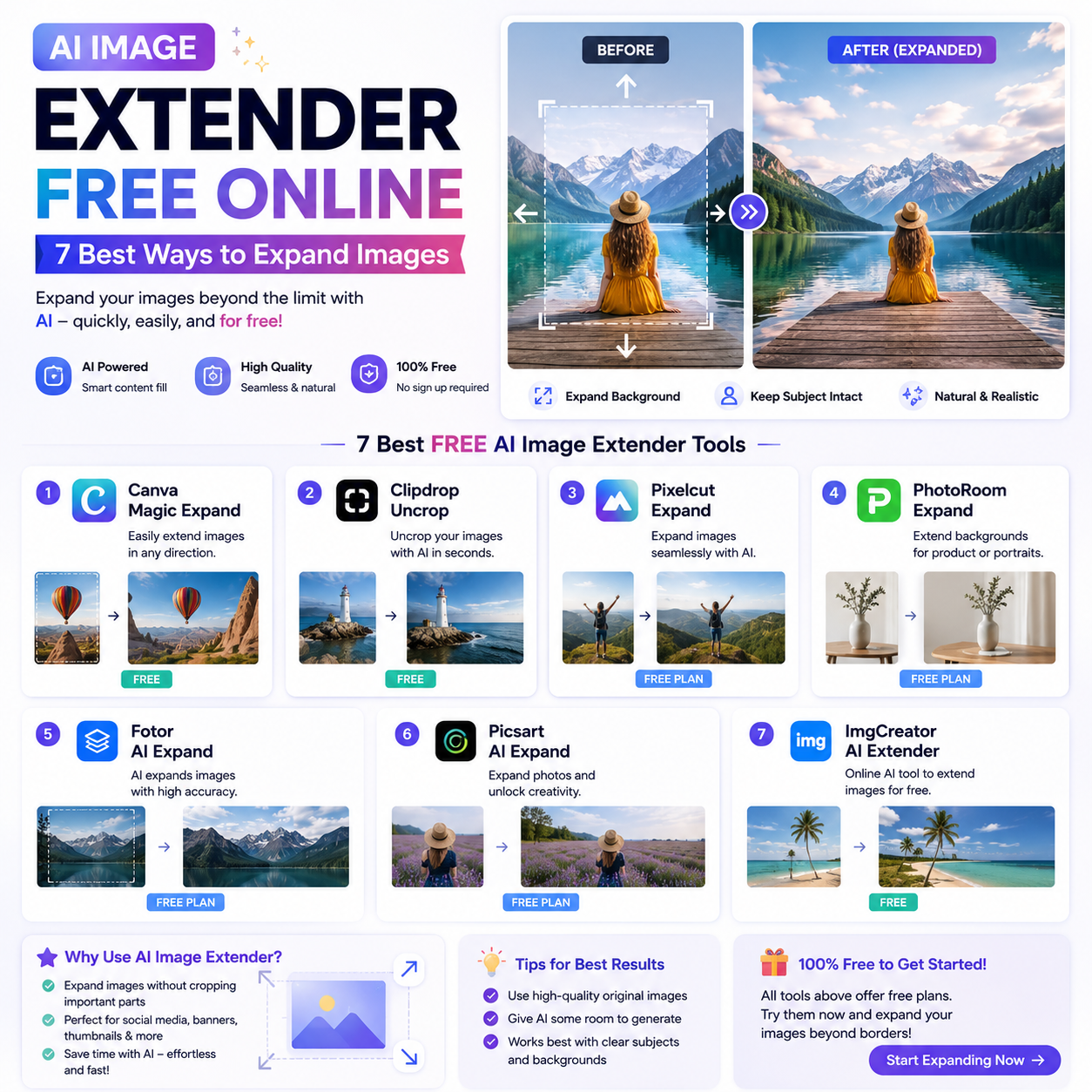
Have you ever taken a photo that looked great but needed more space around the subject? Perhaps you wanted to change a square image into a landscape picture or expand a portrait for social media. An AI image extender free online can help solve these problems without requiring advanced photo-editing skills.
AI image extenders use artificial intelligence to generate additional image content beyond the original borders. Instead of simply stretching a picture, they can create new background details that match the existing scene. This technology is useful for bloggers, designers, students, photographers, and social media creators who want more flexibility when editing images.
In this guide, you will learn how AI image extenders work, explore popular tools, and discover practical tips for expanding images online.
What Is an AI Image Extender Free Online?
An AI image extender free online is a web-based tool that uses artificial intelligence to enlarge an image’s canvas and generate content outside its original boundaries. This process is often called AI outpainting or generative image expansion.
Traditional image resizing makes an image larger by adjusting its dimensions. However, resizing does not automatically add new scenery or background details. An AI image extender attempts to create additional content that fits the original image.
For example, if you upload a portrait with a plain background, the tool may extend the background to create more space around the person. If you upload a landscape photograph, it may generate additional sky, trees, or scenery.
The results depend on the image, the tool, and the complexity of the scene. AI-generated extensions may occasionally contain unrealistic details, so reviewing the final image is important.
How Does an AI Image Extender Work?
Most AI image extenders follow a straightforward process.
First, you upload an existing photograph or graphic. Next, you choose a larger canvas or a desired aspect ratio. The AI examines the visible image and attempts to generate new pixels beyond the original edges.
Some tools use text prompts to guide the expansion. For example, you might instruct the AI to continue a beach background, add more sky, or extend a wooden table naturally.
The software then produces an expanded version of the original image. Depending on the platform, you may be able to generate several variations and select the most realistic result.
7 Popular Tools for Extending Images with AI
The following platforms offer image editing or generative expansion features. Their availability, free credits, and export limits may change, so check their current terms before using them.
1. Adobe Firefly
Adobe Firefly offers generative image editing features, including Generative Expand in supported workflows. This feature can help users extend an image beyond its original borders and generate additional background content.
Upload a compatible image, adjust the canvas, and use the available generative controls to fill the new space.
Best for: Designers, marketers, and creators who want advanced image-editing options.
Website: https://firefly.adobe.com/
2. Canva
Canva provides image editing and AI-assisted design features. Depending on the current plan and supported workflow, its Magic Expand feature can help extend images to fit different layouts.
This can be useful when adapting photographs for presentations, social media graphics, and blog visuals.
Best for: Beginners and content creators who want to edit images and create designs in one place.
Website: https://www.canva.com/
3. Fotor
Fotor offers online photo editing and AI image tools. Its AI expansion capabilities can help users create additional space around an image and adapt visuals to different dimensions.
The exact features available without payment may vary.
Best for: Bloggers, casual users, and social media creators who prefer browser-based editing.
Website: https://www.fotor.com/
4. Picsart
Picsart offers a collection of creative editing tools, including AI-assisted image features. Depending on the available feature set, users can explore options for expanding image compositions and creating content for social media.
Review the export options and free usage limits before starting a large project.
Best for: Creators who combine image editing with social media design.
Website: https://picsart.com/
5. Clipdrop
Clipdrop provides AI-powered visual editing tools. Its available features may include options for generating or modifying image content, depending on the current product offering.
Check whether the specific image-expansion feature you need is available and whether its free plan meets your requirements.
Best for: Users who want to explore AI-based image editing through an online interface.
Website: https://clipdrop.co/
6. Kapwing
Kapwing is an online creative platform with image and video editing capabilities. It can help users prepare visual content for social media and other digital projects, although its exact AI expansion options should be checked before use.
Best for: Content creators who work with multiple media formats.
Website: https://www.kapwing.com/
7. Photopea
Photopea is a browser-based image editor that supports many common image-editing tasks. It is not primarily an automatic AI image extender, but it can help users adjust canvas dimensions, reposition subjects, and manually build or refine image backgrounds.
Best for: Users who want more manual control over image composition.
Website: https://www.photopea.com/
How to Use an AI Image Extender Free Online
You can generally extend an image by following these steps.
Step 1: Choose Your Image
Select a clear photograph or graphic that you want to expand. Images with recognizable backgrounds and good visual quality can be easier to extend successfully.
Make sure you have permission to edit and use the image.
Step 2: Upload the Image
Open your chosen online tool and upload the picture. Some platforms support JPG and PNG files, while others may accept additional formats.
Check the file-size limits before uploading large images.
Step 3: Select the New Dimensions
Choose the aspect ratio or canvas size you need. For example, a landscape layout may suit a website banner, while a portrait layout may be more suitable for certain social media posts.
Avoid expanding the canvas more than necessary because large extensions may introduce inconsistent details.
Step 4: Enter a Prompt if Available
Some tools allow you to describe what should appear outside the original image.
For example, you could write: “Extend the soft blue sky naturally and continue the distant mountains.”
Specific instructions can help guide the result, although the generated content may not always match your expectations.
Step 5: Generate and Review
Allow the tool to generate the expanded image. If several variations are available, compare them carefully.
Look for unnatural patterns, distorted objects, mismatched lighting, or repeated details around the borders.
Step 6: Download the Final Image
Choose the appropriate export format and download the image. If you plan to use it on a website, balance image quality with file size to help maintain page performance.
Benefits of Using a Free AI Image Extender
Expand Images Without Stretching
AI expansion can add new background content instead of simply stretching existing pixels. This helps preserve the appearance of the original subject.
Adapt Images to Different Platforms
A photograph originally captured in portrait orientation may need extra space to fit a website banner or presentation. Image expansion can help adapt the composition.
Save Time on Editing
Traditional background reconstruction may require considerable manual work. AI tools can generate a first draft in a shorter time, which you can then refine.
Improve Creative Flexibility
Designers can experiment with different compositions, add space for text, and create more balanced visuals for marketing materials.
Bloggers can use expanded images for featured pictures, article illustrations, and promotional graphics. Social media creators can also adapt images to different layouts.
Practical Tips for Better AI Image Expansion
Use high-quality source images. Clear images generally provide more useful visual information for the AI.
Keep the subject positioned carefully. Leave enough room around important objects when choosing the new canvas size.
Describe the background clearly. If the tool supports prompts, explain the scenery, colors, and lighting you want.
Check important details. AI may produce errors in faces, text, hands, architecture, and other complex elements.
Compare multiple versions. When possible, generate alternatives before choosing the final result.
Respect copyright and privacy. Use images you own or have permission to edit. Avoid uploading confidential or sensitive photographs to services whose privacy policies you have not reviewed.
Is an AI Image Extender Really Free?
Some tools offer free image expansion, but free access does not always mean unlimited use. A platform may provide a limited number of credits, restrict image resolution, add a watermark, or reserve certain features for paid subscriptions.
Before choosing a tool, check whether it offers:
- Free image expansion or only a limited trial.
- High-resolution downloads.
- Watermark-free exports.
- Suitable file formats.
- Commercial usage rights for your intended project.
- Clear policies for uploaded images and generated content.
For occasional editing, a free plan may be enough. If you frequently create images for clients or commercial websites, compare the terms of several services before choosing one.
Frequently Asked Questions
1. What is the best AI image extender free online?
Adobe Firefly, Canva, and Fotor are useful starting points for exploring AI-assisted image expansion. The best option depends on the specific features, free limits, and image quality you need.
2. Can AI extend a photo without changing the original subject?
Many tools attempt to preserve the original image while generating content outside its borders. However, results can vary. Review the output carefully, especially when the original subject must remain unchanged.
3. Can I extend images for free without downloading software?
Yes. Several image-editing services operate through web browsers. You can upload an image, use supported editing features, and download the result without installing a desktop application.
4. Which image formats can I use?
Many online tools accept JPG and PNG files, but supported formats vary by platform. Check the tool’s requirements before uploading your image.
5. Can AI image extenders improve image resolution?
Image expansion and image upscaling are different tasks. Expansion generates content beyond the original borders, while upscaling increases the image’s pixel dimensions. Some platforms offer both features.
6. Is AI-generated image expansion suitable for commercial use?
It may be suitable, depending on the platform’s terms, the original image rights, and the intended use. Always review licensing conditions before publishing or selling the result.
Conclusion
An AI image extender free online can help you adapt photographs, create additional background space, and prepare visuals for websites, presentations, and social media. Tools such as Adobe Firefly, Canva, and Fotor offer useful options to explore, while browser-based editors can provide additional control over image composition.
Choose a tool that fits your budget and editing needs, check its free-plan restrictions, and review every generated result before publishing. With careful prompts and a good source image, AI expansion can become a practical part of your creative workflow.
For more guides on AI tools, online editors, and digital content creation, visit CloudMagz.com.
[…] uploading lecture documents, check the platform’s privacy policy and your institution’s rules. Do not upload confidential research, personal student records, […]