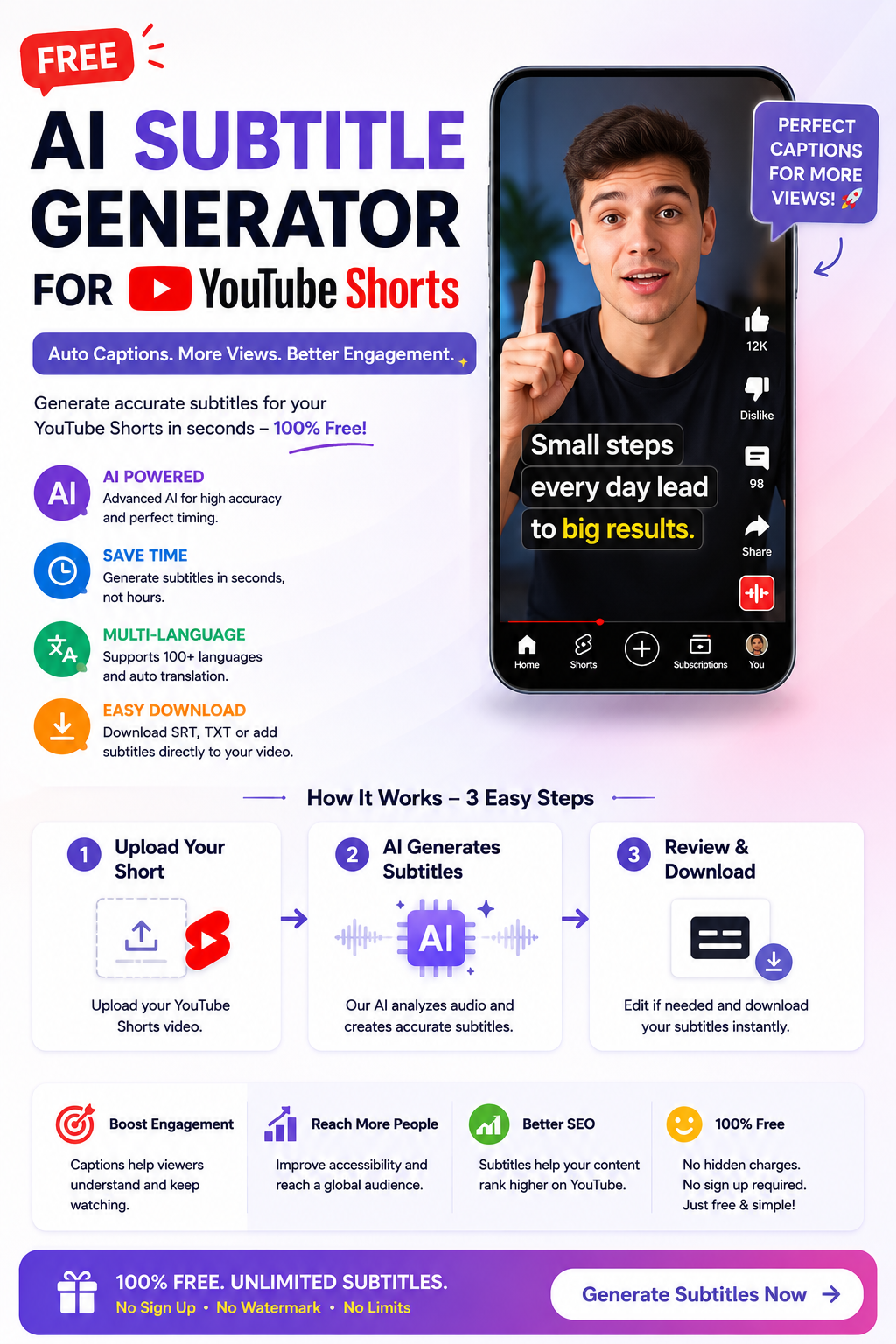
Creating engaging YouTube Shorts requires more than interesting videos. Captions and subtitles help viewers understand your message, especially when they watch videos without sound or struggle to hear the audio clearly. A free AI subtitle generator for YouTube Shorts can make this process faster by automatically converting spoken words into on-screen text.
Instead of typing every sentence manually, creators can upload a video, generate subtitles, correct transcription errors, and customize the captions before publishing. These tools are useful for beginners, educators, influencers, marketers, and businesses that want to produce videos efficiently.
In this guide, we will explore popular subtitle generators, explain how to use them, and share practical tips for creating readable captions for YouTube Shorts.
What Is a Free AI Subtitle Generator for YouTube Shorts?
A free AI subtitle generator for YouTube Shorts is an online tool or video-editing application that uses artificial intelligence and speech recognition to convert spoken audio into written text.
Many tools automatically detect speech, create a transcript, and synchronize captions with the video. Some also let you change font styles, colors, animation effects, and subtitle positioning.
For example, if you record a 30-second video explaining three productivity tips, an AI subtitle generator can transcribe your speech and divide it into short caption segments. You can then review the text and export the video with captions or download a subtitle file, depending on the tool.
Free plans vary. Some platforms offer limited transcription minutes, while others restrict advanced styling, exports, or watermark-free downloads.
Why Are Subtitles Important for YouTube Shorts?
1. Make Videos Easier to Understand
Subtitles help viewers follow spoken information in situations where listening to audio is difficult or inconvenient. They can be particularly useful for tutorials, educational clips, interviews, and explanatory videos.
2. Improve Accessibility
Captions make video content more accessible to deaf and hard-of-hearing viewers. Accurate captions should include the spoken words and, when appropriate, meaningful non-speech sounds.
3. Support Mobile Viewing
Many people watch short videos in public places, classrooms, or workplaces where they may keep the sound turned off. On-screen captions help communicate the message in these situations.
4. Save Editing Time
Manually transcribing and timing every sentence can be slow. AI tools can create an initial transcript automatically, allowing creators to focus on correcting mistakes and improving the final video.
5. Make Educational Content More Useful
Captions can help viewers follow explanations, understand unfamiliar terminology, and revisit important points. However, they should complement clear narration rather than replace good video content.
7 Best Free AI Subtitle Generators for YouTube Shorts
The following tools offer different captioning and editing workflows. Their free features, export limits, and availability may change, so check the current plan before using them.
1. CapCut
CapCut is a popular video editor with automatic captioning features in supported versions and regions. Creators can generate subtitles, edit the recognized text, and customize the appearance of captions.
Its editing workflow is useful for preparing vertical videos for short-form platforms. Some features may require an account or paid access.
Best for: Beginners who want automatic captions and video editing in one application.
Website: https://www.capcut.com/
2. VEED
VEED is a browser-based video editor with automatic subtitle generation and caption-editing tools. Users can upload a video, generate a transcript, correct errors, and adjust caption styling.
Free exports and subtitle features may have limitations, so check the current plan.
Best for: Creators who prefer editing videos online without installing desktop software.
Website: https://www.veed.io/
3. Canva
Canva provides video editing and caption-related features within its design platform. Depending on the current workflow and plan, users can add subtitles and prepare videos for social media.
It is particularly useful when captions need to fit a broader visual design.
Best for: Creators who want to combine video captions with graphics and branded content.
Website: https://www.canva.com/
4. Kapwing
Kapwing offers browser-based video editing, automatic subtitle generation, and caption customization. It can help creators prepare short clips with synchronized text.
Review its current free export limits and any watermark restrictions before starting your project.
Best for: Social media creators who need a convenient online editing workflow.
Website: https://www.kapwing.com/
5. Descript
Descript uses transcription-based editing to help users work with spoken content. Its features can make it easier to generate, review, and edit transcripts associated with videos.
Free usage limits and available export options depend on the current plan.
Best for: Educators, interview creators, and people who frequently edit spoken-word videos.
Website: https://www.descript.com/
6. Adobe Express
Adobe Express offers tools for creating and editing social media videos. Depending on current feature availability, creators can explore captioning workflows and combine videos with branded visual elements.
Check whether the caption feature and export settings you need are available in your region and plan.
Best for: Creators who want to prepare polished promotional or educational videos.
Website: https://www.adobe.com/express/
7. YouTube Studio
YouTube Studio includes subtitle tools for videos uploaded to YouTube. Depending on language support and processing availability, automatic captions may be generated for eligible videos.
Creators can review and correct subtitles in YouTube Studio rather than relying entirely on a third-party editor.
Best for: YouTubers who want to manage and correct captions within their publishing workflow.
Website: https://studio.youtube.com/
How to Generate Subtitles for YouTube Shorts with AI
Creating captions generally involves six simple steps.
Step 1: Prepare Your Video
Record your video in a quiet environment and speak clearly. Reduce unnecessary background noise when possible because poor audio quality can make automatic transcription less accurate.
Step 2: Choose a Subtitle Generator
Select a tool that supports your video format and desired caption style. Check whether it provides free transcription and allows you to export the finished video or subtitle file.
Step 3: Upload Your Video
Import your video into the editor. Some tools also support recording directly or importing video through other supported workflows.
Step 4: Generate Automatic Captions
Select the automatic subtitle or transcription feature. Choose the correct spoken language when this option is available.
The tool will analyze the audio and create text segments synchronized with the video.
Step 5: Review and Correct the Captions
AI transcription is not always perfect. Check names, technical terms, punctuation, numbers, and words that sound similar.
Play the video while reading the captions to confirm that the timing matches the narration.
Step 6: Customize and Export
Choose a readable font, suitable colors, and a position that does not cover important visual information. Export the video or subtitle file using the format supported by your workflow.
After uploading the Short, preview it on a mobile screen to confirm that the captions remain readable.
Best Subtitle Settings for YouTube Shorts
Use Readable Fonts
Choose a clear font with enough contrast against the background. Avoid decorative lettering that makes words difficult to recognize on a small screen.
Keep Caption Segments Short
Display a manageable amount of text at a time. Breaking long sentences into shorter segments can make captions easier to follow during fast-paced videos.
Position Captions Carefully
Keep captions away from important faces, objects, and on-screen text. Leave enough space near the edges to reduce the risk of captions being obscured by interface elements.
Use Consistent Styling
Use consistent font sizes, colors, and placement throughout the video. Highlighting a few important words can be effective, but excessive animation may distract viewers.
Check Spelling and Timing
Even a well-designed subtitle can confuse viewers if it contains errors or appears too early. Always watch the finished video before publishing it.
Are Free AI Subtitle Generators Really Free?
Some subtitle generators provide free access, while others limit the number of transcription minutes, video duration, export quality, or available caption styles.
Before selecting a tool, check whether it offers:
- Automatic speech-to-text transcription.
- Support for your spoken language.
- Editable captions and timing.
- Watermark-free video exports, if needed.
- Suitable video resolution and file formats.
- Clear privacy and data-handling policies.
If you publish only a few Shorts each week, a free plan may be sufficient. Creators producing many videos should compare the limits before committing to a paid subscription.
Common Mistakes to Avoid
Publishing captions without reviewing them: AI may misinterpret accents, background noise, names, or technical words.
Using tiny text: Captions should remain readable on a phone.
Adding too many effects: Excessive movement, colors, and animations can distract viewers from the message.
Covering important visuals: Position captions so they do not obscure faces, demonstrations, or essential text.
Ignoring accessibility: Use accurate wording and sensible timing. Do not rely on color alone to communicate important information.
Assuming subtitles guarantee more views: Captions can improve accessibility and comprehension, but video performance also depends on content quality, audience interest, and many other factors.
Frequently Asked Questions
1. What is the best free AI subtitle generator for YouTube Shorts?
CapCut is a useful starting point for creators who want captions and video editing together. VEED, Kapwing, and YouTube Studio are alternatives worth exploring, depending on your preferred workflow and free-plan requirements.
2. Can AI automatically add subtitles to YouTube Shorts?
Yes. Supported video editors can generate captions from spoken audio. You should review the transcript and timing before publishing because automatic recognition can make mistakes.
3. Can I generate subtitles without downloading software?
Yes. Several browser-based platforms offer online captioning tools. YouTube Studio also provides subtitle management for uploaded videos.
4. Do subtitles help YouTube Shorts perform better?
Captions can make videos easier to understand and more accessible. However, they do not guarantee higher views, watch time, or engagement.
5. Can AI subtitle generators support different languages?
Many tools support multiple languages, but the available languages and transcription accuracy vary. Check that your chosen platform supports the language and accent used in your video.
6. Should I use burned-in captions or subtitle files?
Burned-in captions are permanently visible in the video, while subtitle files can be enabled or managed separately where supported. Burned-in captions provide consistent visual styling, whereas subtitle files offer more flexibility.
Conclusion
A free AI subtitle generator for YouTube Shorts can help creators turn spoken audio into synchronized captions without spending hours typing each sentence manually. Tools such as CapCut, VEED, Kapwing, and YouTube Studio offer different ways to generate, edit, and manage subtitles.
Choose a tool that fits your workflow, check its free-plan restrictions, and always review captions before publishing. Accurate transcription, readable text, and good timing can make your videos easier to follow and more accessible to a wider audience.
For more helpful guides on AI tools, video editing, and digital content creation, visit CloudMagz.com.
[…] more helpful guides on AI tools, student productivity, and digital learning, visit […]