Sympatico.ca has long been a staple email service for Canadians, especially those who use Bell Canada’s internet and communication services. While the platform has evolved over the years, many users still rely on their Sympatico.ca email addresses for personal and professional communication. If you’re searching for ways to get mail from your Sympatico.ca account in 2026, this comprehensive guide will walk you through the latest methods, troubleshooting tips, and best practices for seamless email access.
Understanding Sympatico.ca Email
Sympatico.ca is the domain used for email addresses provided by Bell Canada. In most cases, Sympatico.ca accounts are managed through Bell’s webmail interface, but they can also be accessed using third-party email clients such as Microsoft Outlook, Apple Mail, and mobile mail apps. Knowing how to access your messages securely and efficiently ensures you never miss important communications.
Accessing Sympatico.ca Email via Webmail
The most straightforward way to check your Sympatico.ca email is through Bell’s webmail portal. Here’s how:
- Visit the Official Bell Webmail Page: Go to webmail.bell.net in your web browser.
- Enter Your Credentials: Log in using your full Sympatico.ca email address and your password.
- Inbox Management: Once logged in, you’ll have access to your inbox, sent mail, folders, and account settings. The webmail interface is user-friendly and regularly updated for security.
Setting Up Sympatico.ca Mail on Email Clients
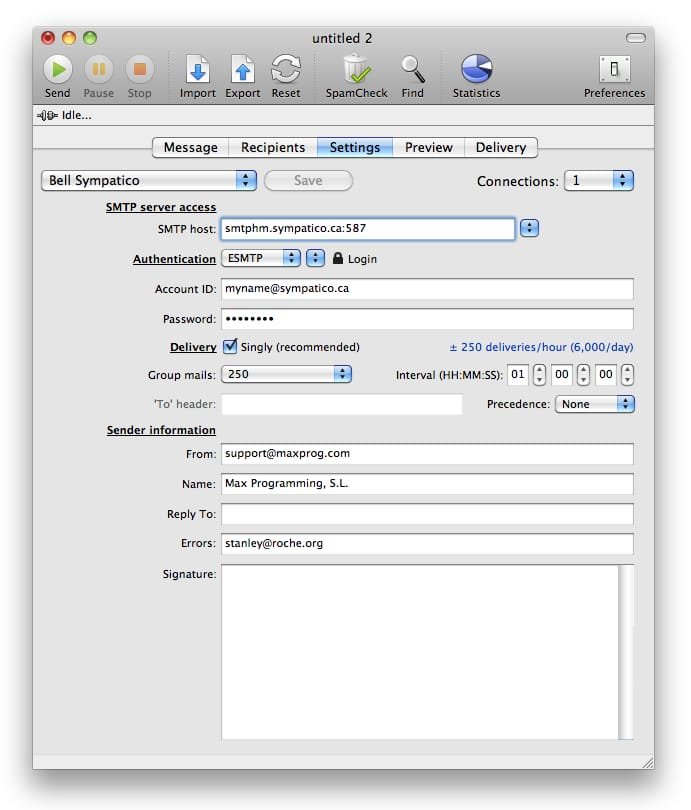
For users who prefer managing their email through desktop or mobile clients, Sympatico.ca supports both IMAP and POP protocols. Here’s how to set it up:
-
Incoming Mail Server (IMAP):
- Server: imap.bell.net
- Port: 993
- Encryption: SSL
-
Incoming Mail Server (POP):
- Server: pophm.sympatico.ca
- Port: 995
- Encryption: SSL
-
Outgoing Mail Server (SMTP):
- Server: smtp.bell.net
- Port: 465
- Encryption: SSL
-
Username: Your full Sympatico.ca email address
-
Password: Your Sympatico.ca password
Steps for Adding Sympatico.ca to Outlook/Apple Mail:
- Open your email client and go to the settings or account setup section.
- Choose ‘Add Account’ and select IMAP or POP.
- Enter the server details listed above.
- Provide your email address and password.
- Save changes and test by sending a test email.
Mobile Access: Sympatico.ca on Smartphones and Tablets
Accessing your Sympatico.ca mail on the go is easy with most smartphones and tablets:
- iOS Devices (iPhone/iPad): Go to Settings > Mail > Accounts > Add Account > Other. Enter your Sympatico.ca credentials and server information.
- Android Devices: Open the email app, select ‘Add Account,’ enter your credentials, and manually configure the server settings if needed.
Troubleshooting Common Issues
Even with the right setup, users sometimes encounter problems accessing their Sympatico.ca mail. Here are some solutions for common issues:
- Incorrect Passwords: Double-check that your password is correct. If you’ve forgotten it, use the Bell webmail portal’s password reset feature.
- Server Settings Errors: Make sure you’ve entered the correct IMAP/POP and SMTP details. Typos are a common cause of connection failures.
- Authentication Problems: Some clients require ‘Authentication’ to be enabled for outgoing mail. Check this option in your settings.
- Two-Step Verification: If you’ve enabled enhanced security, make sure you follow all prompts for two-step or two-factor authentication.
- App-Specific Passwords: For extra security, Bell may require app-specific passwords for certain third-party mail clients. Generate these in your Bell account settings if prompted.
Security Best Practices for Sympatico.ca Mail
- Use Strong Passwords: Choose unique passwords with a mix of letters, numbers, and symbols.
- Enable Two-Factor Authentication: This adds an extra layer of security to your account.
- Beware of Phishing: Always check the sender’s address and avoid clicking suspicious links.
- Update Your Recovery Info: Ensure your backup email and phone number are current in case you need to recover your account.
Migrating or Forwarding Sympatico.ca Mail
If you’re transitioning to a new email provider, you can set up forwarding from your Sympatico.ca account. Use the ‘Forwarding’ settings in Bell webmail to automatically redirect messages to another address. This ensures you don’t miss emails during the transition.
Customer Support and Additional Resources
Bell provides robust customer support for Sympatico.ca users. If you experience persistent issues:
- Visit the Bell support website for guides and troubleshooting
- Contact Bell’s customer service for one-on-one help
- Use community forums for peer advice
The Future of Sympatico.ca Email in 2026
As digital communication evolves, Sympatico.ca remains a trusted and widely used email service for many Canadians. Bell continues to invest in security and usability features, ensuring that users can access their email reliably from anywhere. Whether you use webmail or prefer an email client on your computer or phone, following the setup and security tips above will keep your messages safe and accessible.
Conclusion
Accessing mail from your Sympatico.ca account in 2026 is straightforward, whether you use webmail, a desktop client, or a mobile device. By understanding server settings, following best security practices, and taking advantage of Bell’s customer support, you can ensure your email experience is smooth and secure. Stay informed about updates from Bell to make the most of your Sympatico.ca email and never miss an important message.